> For the complete documentation index, see [llms.txt](https://docs.indicio.tech/llms.txt). Markdown versions of documentation pages are available by appending `.md` to page URLs; this page is available as [Markdown](https://docs.indicio.tech/developer/indicio-proven-r/how-to-guides/proven-user-tutorial.md).
# Proven User Tutorial
### Introduction
Indicio Proven™ provides the tools to establish a Trusted Digital Ecosystem (TDE). You can immediately issue, verify, and manage credentials. While the options are almost limitless, this tutorial will lead you through a simple workflow that illustrates some of Proven’s core capabilities.
## Install the Holdr+ Mobile Wallet
In order to interact with Proven, please download and install the free Holdr+ wallet from either the [Apple App Store](https://apps.apple.com/us/app/holdr/id1620628623) or the [Google Play Store](https://play.google.com/store/apps/details?id=tech.indicio.holdrplus).
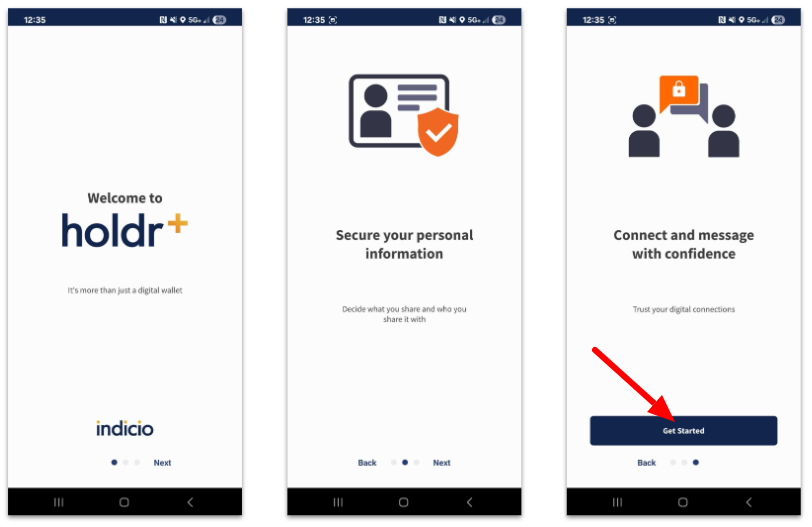
1. Swipe past the first two images and click **Get Started** on the third image as shown below.
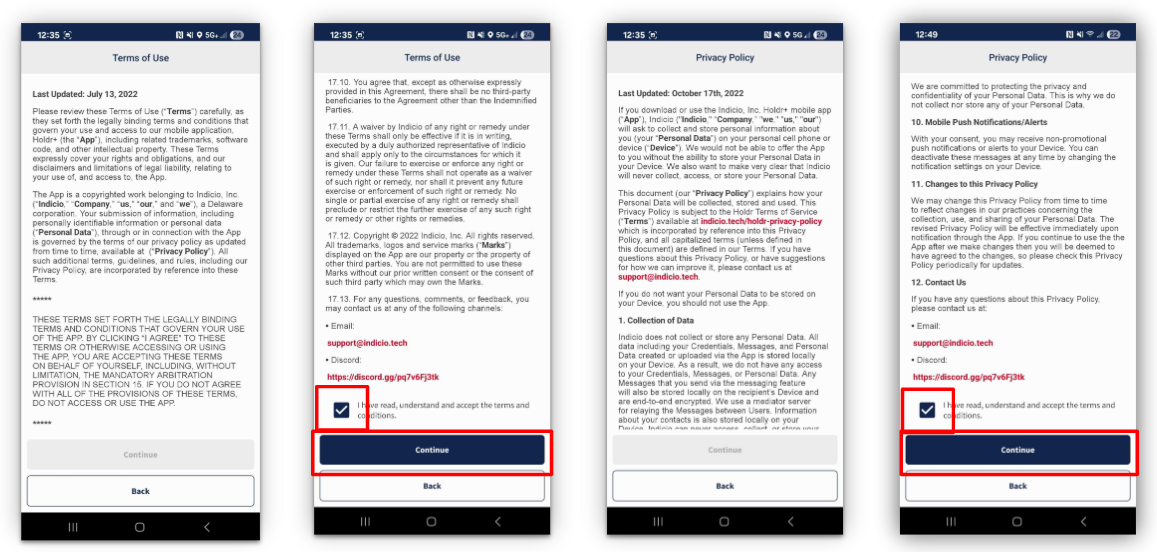
2. Read and accept the **Terms of Use** and the **Privacy Policy**. Check the box verifying you've read, understand, and accept the terms.
3. Click **Continue** for both the **Terms** and the **Privacy** policies.
## Configure Your Holdr+ Mobile Wallet
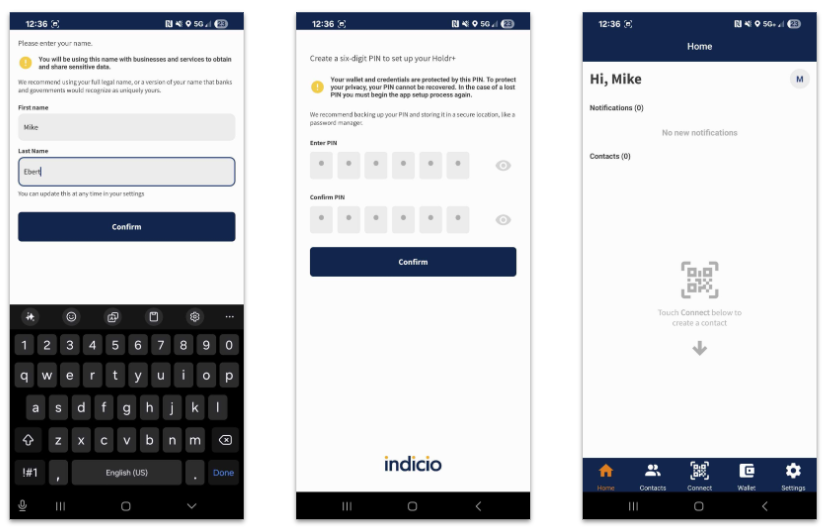
1. Enter **First Name** and **Last name** (first image below).
2. Choose a **PIN** (second image).
3. When you are done, you will see your empty wallet home screen (third image).
## Issuance - Log in to Proven
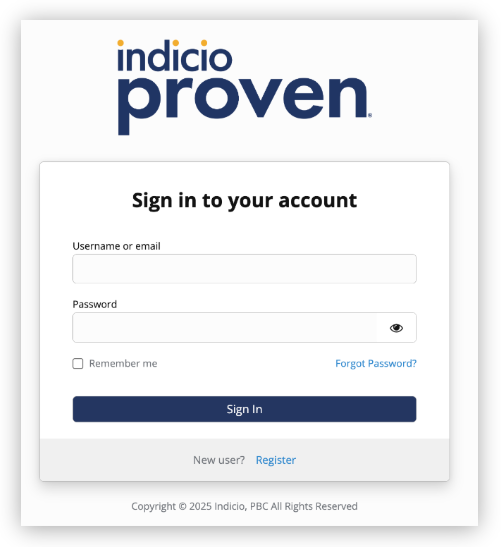
The next step is to log in to Proven.
1. Visit:
2. Username: admin
3. Password: 123!@#!@#QWEqwe
## Issuance - Select a Credential to Offer
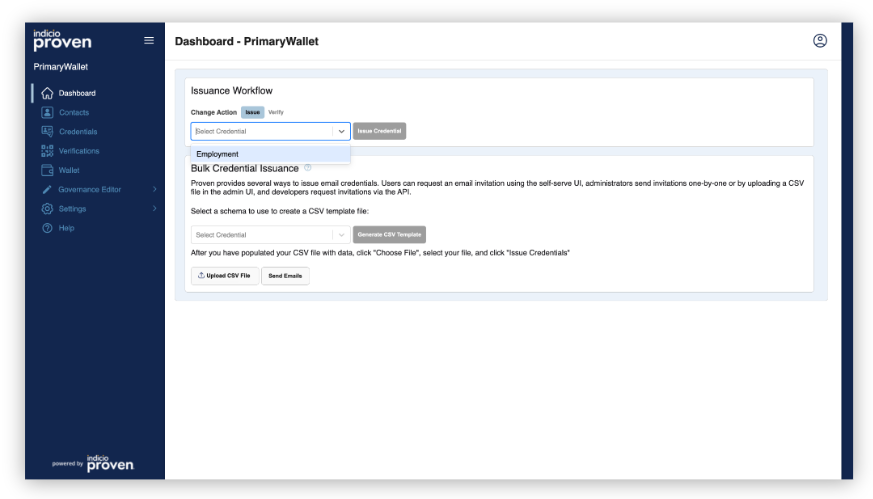
On the Proven UI home page, select a credential to issue from the top drop down and click on **Issue**.
We selected **Employment** because it looks similar to a lot of different types of credentials.
## Issuance - Connect Using the QR Code in Proven
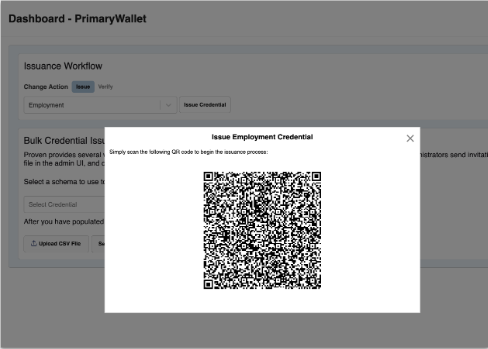
Proven will display a QR code that your mobile wallet can use to connect after you've selected a credential.
## Issuance - Connect Using the QR Code in Proven
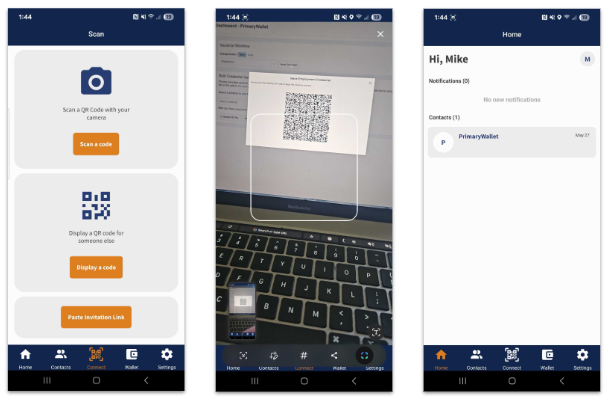
1. In the Holdr+ wallet, click on the **Connect** button found in the bottom center of the screen.
2. Click **Scan a code**.
3. Scan the QR code.
4. You will see a new connection added to your Holdr+ home screen.
## Issuance - Enter Credential Data
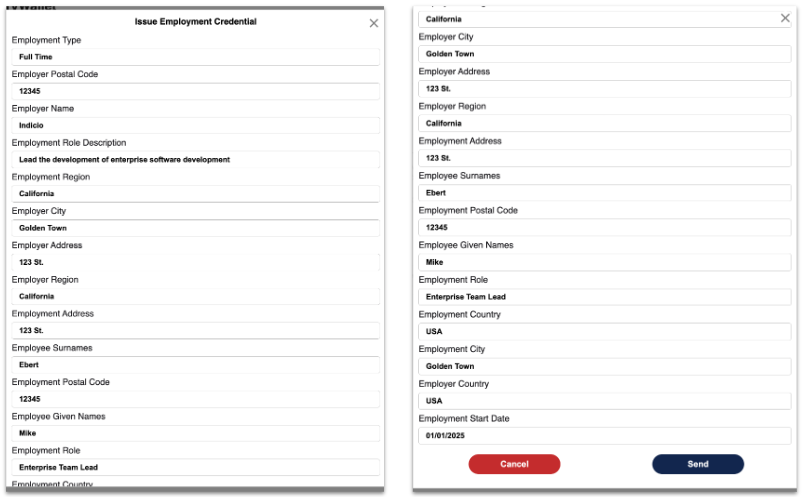
After connecting, Proven will display a form with all of the different attributes for the credential you selected. Fill in these fields and click **Send**. Entering fake data is acceptable.
## Issuance - Receive a Credential Offer
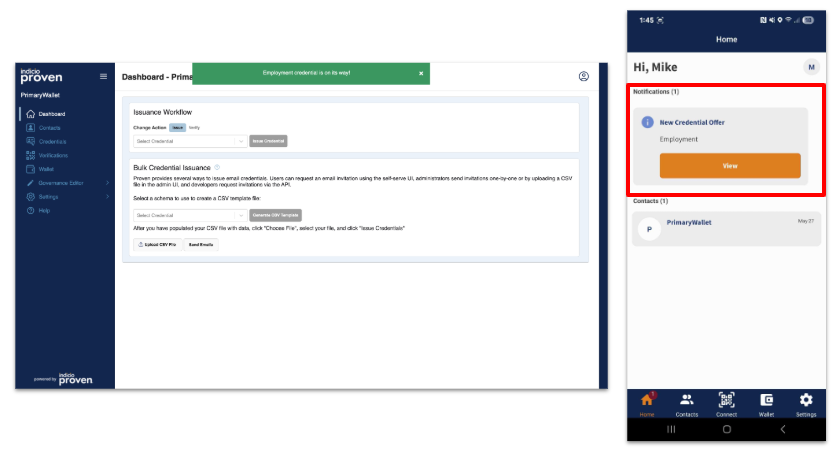
Proven displays a success message that says a credential offer was sent.
Holdr+ will display the offer on your home screen. Click **View** to see the details.
## Issuance - Review and Accept the Credential Offer
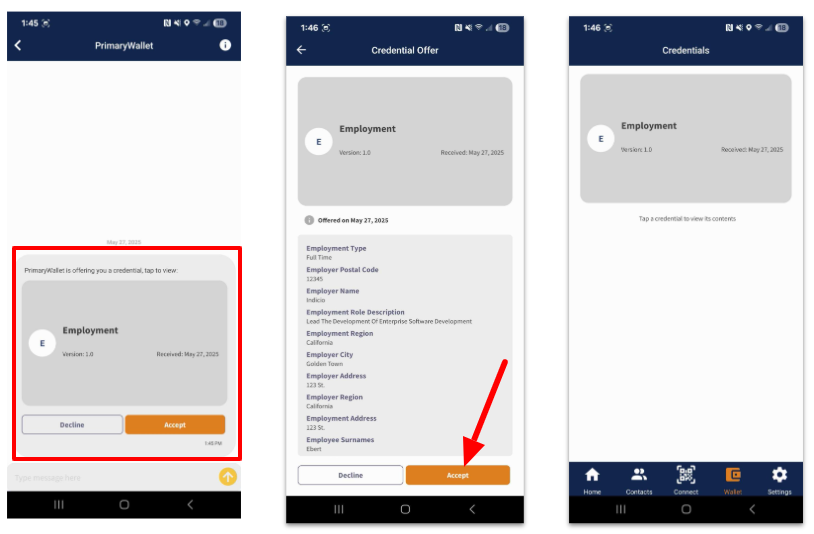
1. Click on the card to see the credential details.
2. Click **Accept** to add the credential to your wallet.
3. You can see the credential on your wallet screen.
## Issuance - Review Your Credential
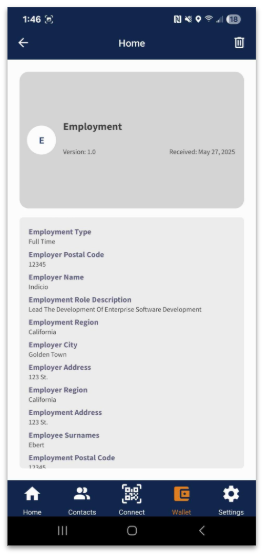
After accepting the credential, Proven displays a success message.
Click on a credential in your Holdr+ wallet to view the details at any time.
## Issuance - View Issued Credentials
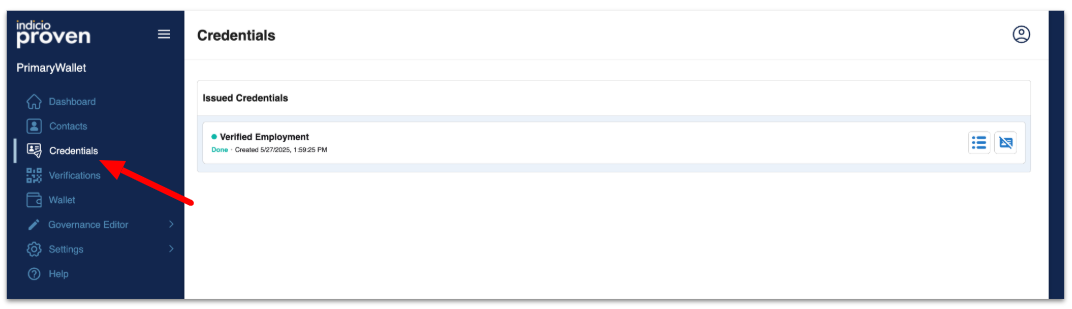
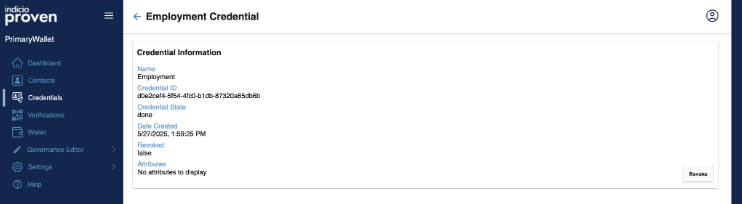
View the list of issued credentials by clicking **Credentials** in the left menu.
Click on a credential in the list to view its details. General credential information and a list of attributes and their values are displayed on the credential details screen.
## Sign out of Proven
Sign out of Proven by clicking on the icon in the top right corner of the screen.
---
# Agent Instructions
This documentation is published with GitBook. GitBook is the documentation platform designed so that both humans and AI agents can read, navigate, and reason over technical content effectively. Learn more at gitbook.com.
## Querying This Documentation
If you need additional information that is not directly available in this page, you can query the documentation dynamically by asking a question.
Perform an HTTP GET request on the current page URL with the `ask` query parameter, and the optional `goal` query parameter:
```
GET https://docs.indicio.tech/developer/indicio-proven-r/how-to-guides/proven-user-tutorial.md?ask=&goal=
```
`ask` is the immediate question: it should be specific, self-contained, and written in natural language.
`goal` is optional and describes the broader end goal you are ultimately trying to accomplish on behalf of the user. GitBook uses it to tailor the answer towards what is most useful for that goal.
The response will contain a direct answer to the question and relevant excerpts and sources from the documentation.
Use this mechanism when the answer is not explicitly present in the current page, you need clarification or additional context, or you want to retrieve related documentation sections.
.png?alt=media&token=f26af43e-8f00-42cc-a40e-a13325d11af1)